
Users #
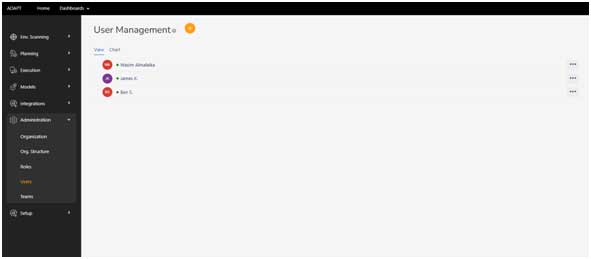
Viewing Users:
- Access the ‘Users’ tab to see a list or chart view of all users.
Adding a User:
Click on the “” icon to add a new user. Fill in required fields such as name, contact information, and role.
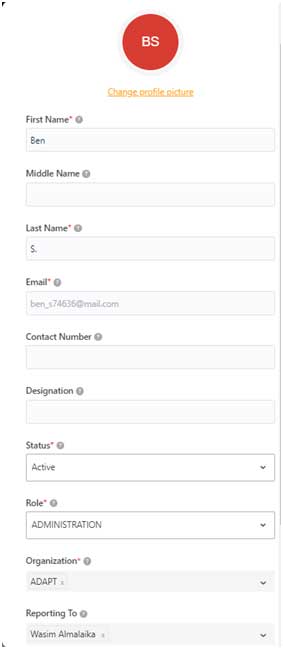
Editing User Information:
- Click the ” (three dots) next to a user’s name to edit their information or change their status.
Assigning Roles:
Within a user’s profile, assign them to a role which will dictate their access and permissions within the platform.
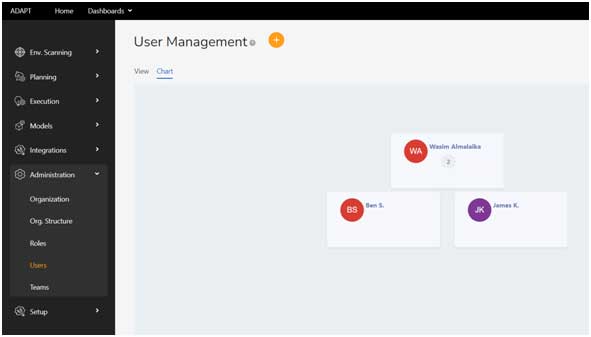
Viewing Organizational Placement:
- Switch to the chart view to see a graphical representation of where users stand within the organizational hierarchy.
Accounts #
The Accounts feature gives the user the ability to register and be part of multiple organizations/accounts. The Accounts tab will display all the organizations your email id is associated with and gives the capability to switch between different organizations.
Switching between Accounts
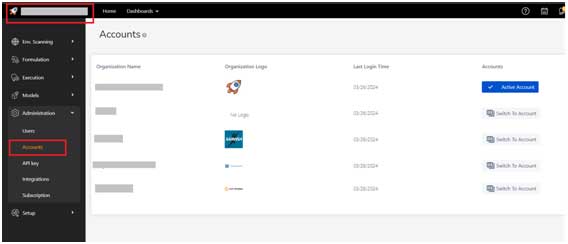
- Navigate to Accounts page
- Click on the “Switch to Account” button under Accounts option.
- After switching to the account, the switched to account shows as “Active Account”.
Once the account is switched, the user gets logout from current organization and login to the new organization. The user should see the data of the new organization.
API Key #
The integration module provided by Core-Strategy utilizes Zapier as an integration tool, hence uses the power of Zapier to integrate the APIs of Core-Strategy with external/ 3rd party applications. Core-Strategy provides Integration module only to advanced users and from and above Growth based subscription.
API Key is used for initial authentication purposes before Zapier Integration by the Core-Strategy APIs.
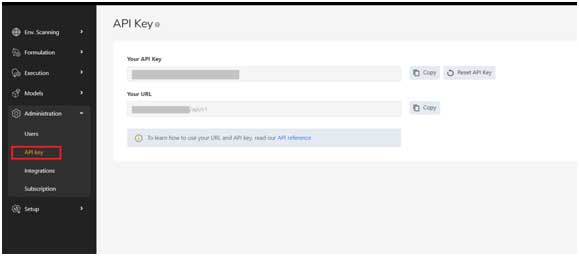
- Under Administration à Click on API Key menu item
- For each organization, a unique API Key is generated and is available for users to use it for integration purposes.
- You have an ability to Copy and even Reset an API Key, if a user wishes to change it.
- User should be using the URL and API Key to connect to all APIs during integration stage.
Integrations #
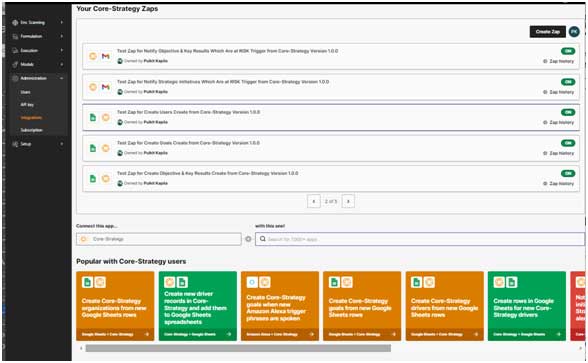
Core-Strategy uses Zapier to integrate all its APIs with external/ 3rd party applications. We will need to signup and sign in to Zapier, to connect to its integration features.
Once connected, please follow the integration guidelines as provided by Zapier documentation.
Subscription #
After user has logged into the application, click on the downward arrow beside the User icon on the top right header. Select the “Subscription“. The User will be navigated to the Subscription page as displayed.
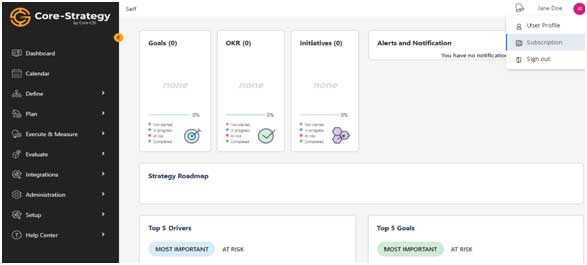
Click on the Subscription Link
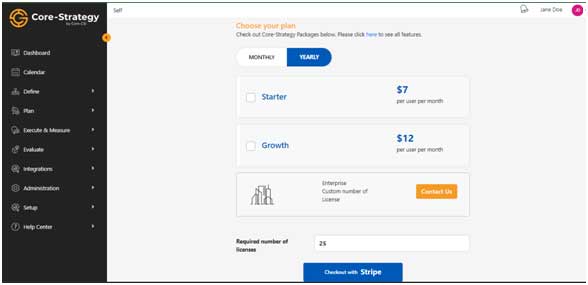
Billing -Subscription
- The page will the option to select a ‘Monthly’ or ‘Yearly’ subscription and a choice between a ‘Starter’ or ‘Growth’ plan.
- Click this link for more detail regarding the subscription plans: Core-Strategy Plans & Pricing
- Select the desired plan and click Checkout with Stripe
Checkout #
- The plan details will be displayed on the left and the 2-Step authentication details will be displayed on the right side of the screen. (Figure 3-7-1)
- Provide the 2-Step authentication details and upon validating your identity, you will proceed to the Check-Out Screen.
- Fill the necessary information and click on A payment successful message will be displayed your screen. (Figure 3-7-2)
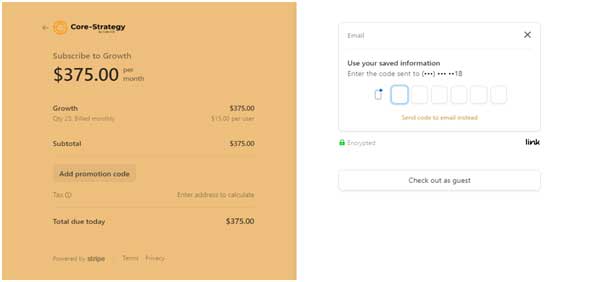
Two-Step Authentication

Check-Out


Leave a Reply