
A goal in an organization describes what a company expects or hopes to accomplish over a specific period, in other words, where it hopes to be at a future date.
Goals are observable and measurable results having one or more objectives to be achieved. Goals are typically broad in scope. For example, a goal might be for an organization to “increase profits.” Or an individual might have a goal to “become certified.”
Goal List #
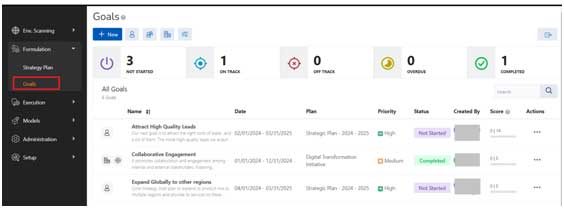
Goals
- The goals page can be accessed from the menu: Formulation à Goals
- The goals visible to a user shall be the ones which the logged in user has either created or the goal is promoted to him or his organization.
Common Components:
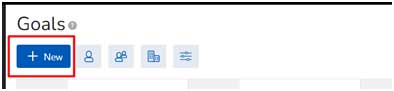
 : This button allows user to create a new goal.
 : Filter to show only individual goals to user
 : Filter to show only team goals to user
 : Filter to show only organization goals to user
 : Open Filter section for advanced filter goal
 : User has an ability to export results in XLSX, CSV, PDF formats
 : Search goals
 : A count of all the Goals which are having “Not Started” status.
 : A count of all the Goals which are having “On Track” status.
 : A count of all the Goals which are having “Off Track” status.
 : A count of all the Goals which are having “Overdue” status.
 : A count of all the Goals which are having “Completed” status.
Table Columns
- Column 1: Shows all icons to identify a goal, e.g.: Promoted icon, individual icon.
- Name: Name of the Goal along with a brief description of the goal.
- Date: Displays the Start & End date of a goal.
- Plan: Displays the Strategy Plan, the goal is mapped to.
- Priority: Displays the priority of the Goal
- Status: Current Status of the Goal
- Created By: The stakeholder/ creator of the goal.
- Score: The score shows both “Actual| Target” score of the goal
- Actions: Actions available on goal page are:
- View
- View Goal
- View OKR
- View Project
- Create
- OKR
- Project
- Promote: The user with Owner Privilege has the capability to promote a Goal to different individuals/ teams/ organization.
- Delete
- View
Add Goal #
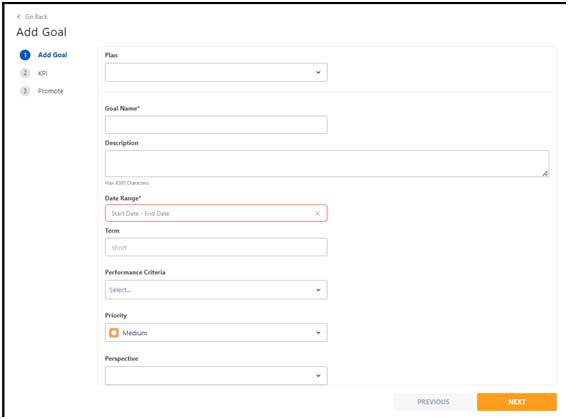
There are three sections to add a Goal
- Add Goal
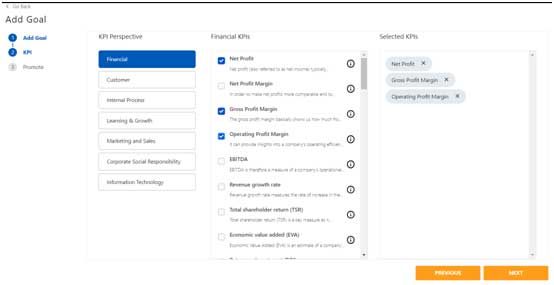
- KPI: Map KPIs which can be used to monitor progress of the Goal based Projects
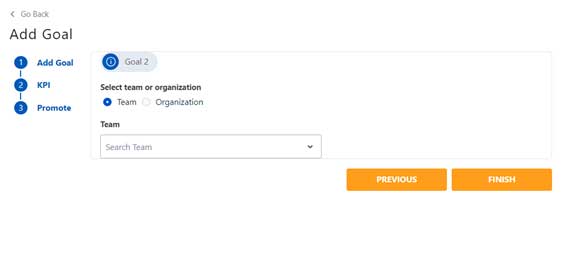
- Promote: Promote a goal to various individual/ teams/ organizations.
Add Goal
- Plan: Select the Strategy plan which is mapped to the new goal.
- Goal Name: Enter the name of the goal
- Description: Enter the description of the goal
- Date Range: Enter the start date and end date of the goal
- Term: The Term is an indicative value to show a user if the goal is short term, medium term or long term.
- Performance Criteria: Select the performance criteria for a goal.
- Priority: Select the priority of a goal
- Perspective: Select the Perspective of a goal. <Definition of perspective is defined in the Terminology section>
KPI Tab
The KPI selection is done for a goal to shortlist the number of possible KPIs which can be used for calculation and analysis purposes in the OKRs and Projects mapped against the current goal.
Promote
In this section, the user has an opportunity to promote the goal to either to various team or departments within the organization.
View Goal Detail #
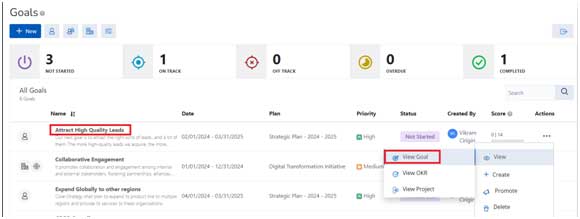
To View the detailed information of a goal, click on either the Goal Name or the View Goal menu item as shown in the screen above.
Goal Tab
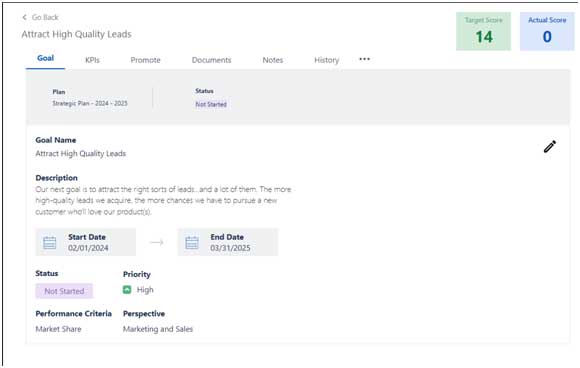
The heading of the Goal Tab shows information of:
- Strategy Plan: Name of the Strategy Plan, the current goal is mapped to.
- Status of Strategy Plan: Status of the Strategy Plan.
- Target Score: The calculated target score to be achieved by the Goal.
- Actual Score: the actual goal score achieved by the objectives of the goal.
Other information related to goal are:
- Goal Name: Name of the Goal
- Description: Description of the Goal
- Start Date: Start Date of the Goal
- End Date: End Date of the Goal
- Status: Realtime Status of the Goal
- Priority: Priority assigned to the goal
- Performance Criteria: Performance Criteria mapped to a goal
- Perspective: Perspective mapped to the goal
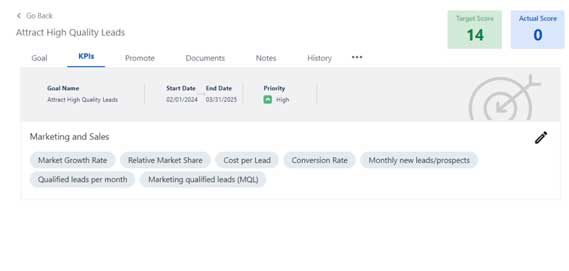
KPIs Tab
The KPI tab shows all the KPIs which can be used by any of the OKRs or Projects which are mapped to the current goal.
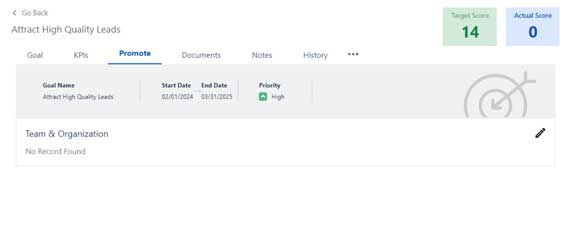
Promote
The promote tab shows all the teams and organizations to which the goal
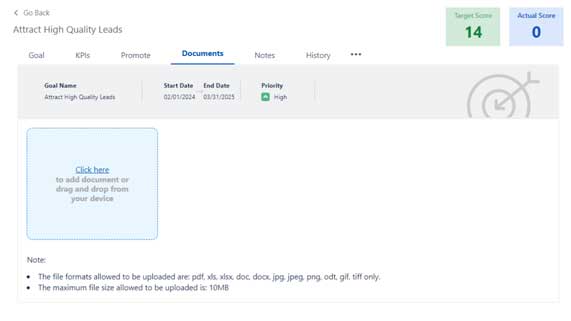
Documents
- For any goal, system provides an ability to upload multiple documents.
- The file formats allowed to be uploaded are: pdf, xls, xlsx, doc, docx, jpg, jpeg, png, odt, gif, tiff only.
- The maximum file size allowed to be uploaded is: 10MB
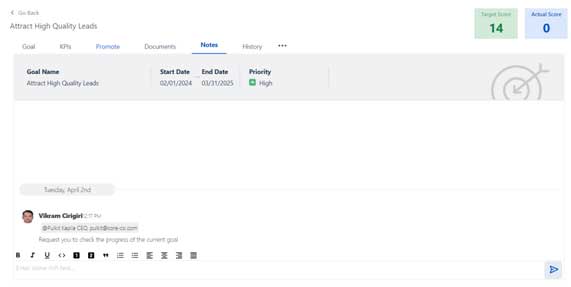
Notes
- For each goal, system provides an ability to add rich text as notes, which can be used for reference purposes.
- The notes component has an ability to add user annotations using @ symbol. Once a note is added with a user name, an email is also generated as well as an In-App notification is generated for the mentioned user.
- Only The owner of the notes has permission to Edit/ Delete a Note. Other users will not be able to edit/ delete the note of other users.
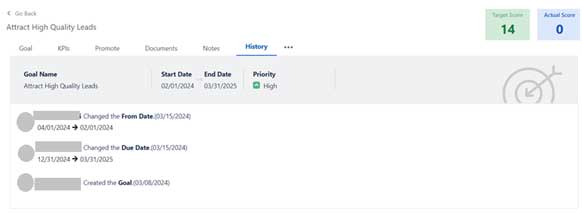
History
- The history tab provides an audit history of all the actions performed on the current goal along with the details of the user who has changed it and Date of change.
Edit Goal #
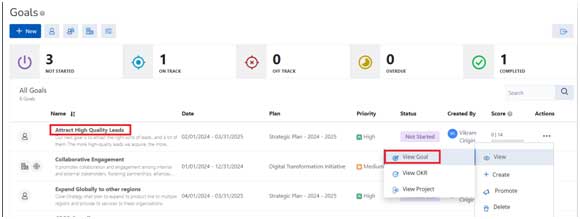
To Edit the detailed information of a goal, click on either the Goal Name or the View Goal menu item as shown in the screen above.
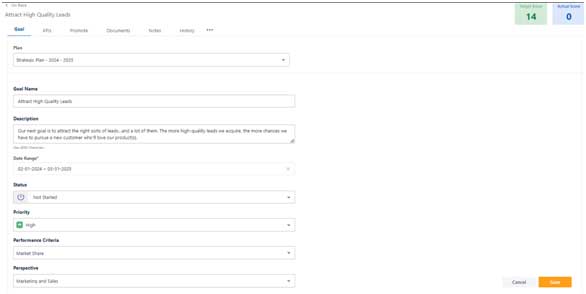
Goal Tab
The heading of the Goal Tab shows information of:
- Strategy Plan: Name of the Strategy Plan, the current goal is mapped to.
- Status of Strategy Plan: Status of the Strategy Plan.
- Target Score: The calculated target score to be achieved by the Goal.
- Actual Score: the actual goal score achieved by the objectives of the goal.
Other information related to goal are:
- Goal Name: Name of the Goal
- Description: Description of the Goal
- Start Date: Start Date of the Goal
- End Date: End Date of the Goal
- Status: Realtime Status of the Goal
- Priority: Priority assigned to the goal
- Performance Criteria: Performance Criteria mapped to a goal
- Perspective: Perspective mapped to the goal
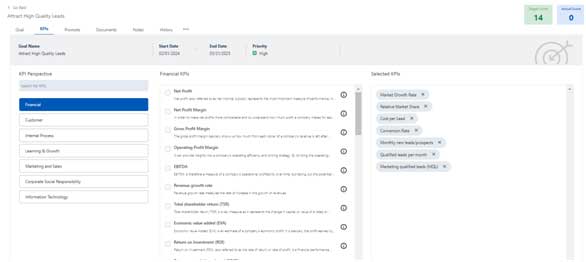
KPIs Tab
The KPI tab shows all the KPIs which can be used by any of the OKRs or Projects which are mapped to the current goal.
Promote
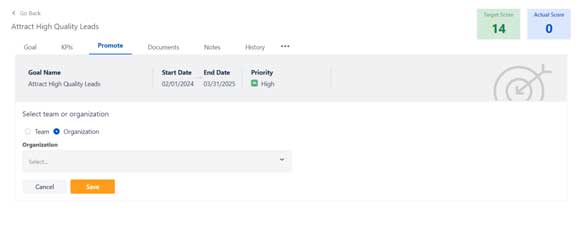
The promote tab can be used to add/remove all the teams and organizations to the current goal.
Documents
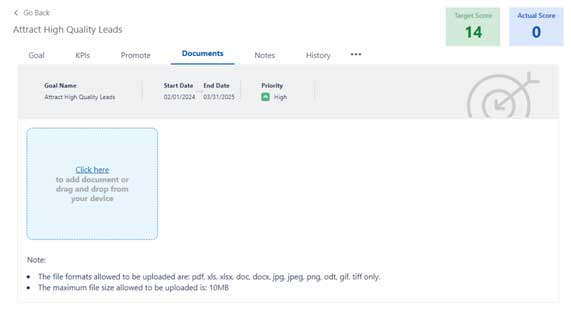
- For any goal, system provides an ability to upload multiple documents.
- The file formats allowed to be uploaded are: pdf, xls, xlsx, doc, docx, jpg, jpeg, png, odt, gif, tiff only.
- The maximum file size allowed to be uploaded is: 10MB
Notes
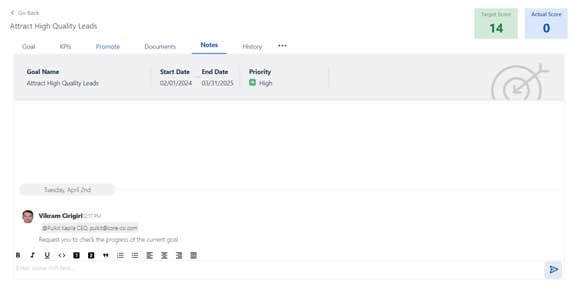
- For each goal, system provides an ability to add rich text as notes, which can be used for reference purposes.
- The notes component has an ability to add user annotations using @ symbol. Once a note is added with a user name, an email is also generated as well as an In-App notification is generated for the mentioned user.
- Only The owner of the notes has permission to Edit/ Delete a Note. Other users will not be able to edit/ delete the note of other users.
History
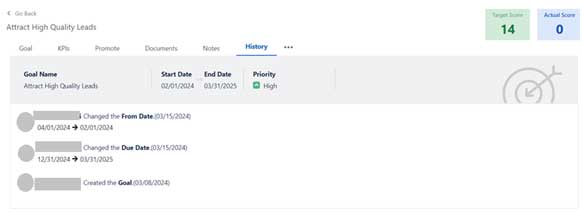
- The history tab provides an audit history of all the actions performed on the current goal along with the details of the user who has changed it and Date of change.


Leave a Reply