
User Sign-up #
- Access the application using following URL: https://core-strategy.us.
- For new users, navigate to the top right and click on the “Try for Free” button, and create an account.

3. For the “New User Registration”, fill in the basic account information.
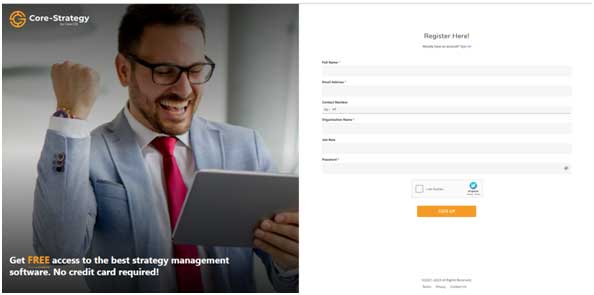
Registration link
Enter your Full name.
- Enter your Email Address.
- Enter a valid Phone Number
- Enter the Organization Name
- Enter the Job Role
- Enter a Strong Password.
- Password rules: Password should have a minimum of eight (8) characters and must have a minimum of one number, one special character and an uppercase character.
- Click on the checkbox next to I am human for Captcha verification.
- Select the appropriate images Upon checking images; a green border appears on the selected images.
- Once related images are selected, click Verify
- After verification, click Sign-up.
Registered User receives a verification email with the subject line ” Welcome to Core
- Strategy: Verify your Email
- Note verification email and provided link is valid for 24 hours only
- Depending on your mail settings this notification may get marked as Junk/Spam.
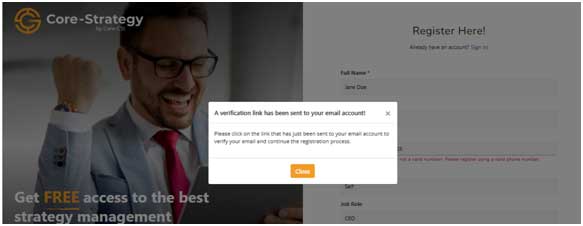
Account Verification Email
Click on Activate Account link in the email to complete the registration process.
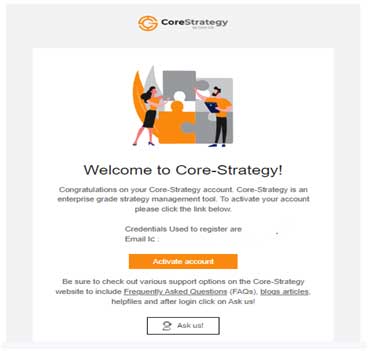
Upon activation, a new tab will emerge that allows you to log into the Core-Strategy site as a new user. Please be sure to save the following URL to your “Favorites” for easy access to the Core-Strategy Site: https://www.core-strategy.us . The next time you log in, simply navigate to the upper right-hand corner on the site, click on Sign In, and provide your registered username and password.
User Login #

- To login to the Core-Strategy visit https://www.core-strategy.us
- Click on Sign-In link as indicated
- On the login page complete User Login Information (registered email and password)
- For security validation, check the box I am human.
- To complete two factors authentication, select the related image – captcha verification and then click on “Verify to complete validation.
- Users can also click on the refresh icon to reload the captcha
- Once validated, the check boxnext to I am human will appear, then click on LOG IN.
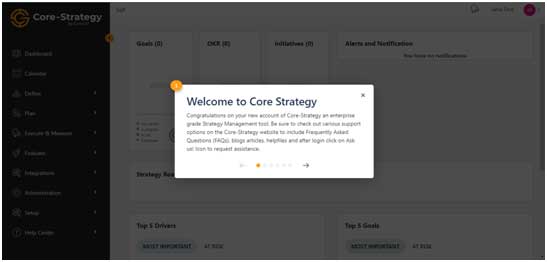
- On successful login, the Home Page is now visible with the tour guide of the application.
Subscription & Check-Out Process #
After user has logged into the application, click on the downward arrow beside the User icon on the top right header. Select the “Subscription“. The User will be navigated to the Subscription page as displayed.
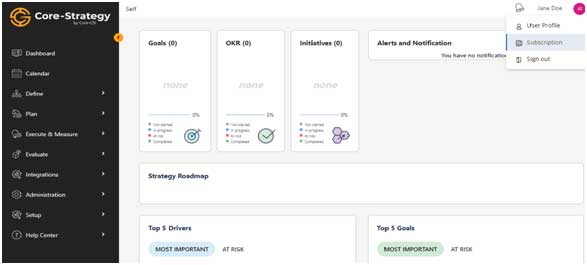
Click on the Subscription Link
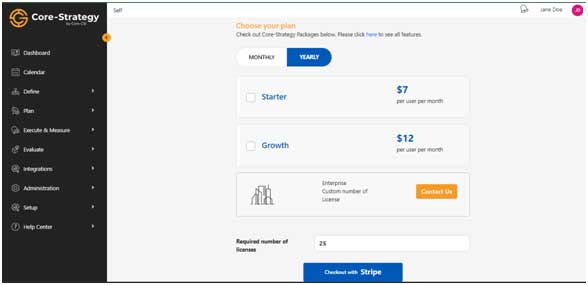
Billing -Subscription
- The page will the option to select a ‘Monthly’ or ‘Yearly’ subscription and a choice between a ‘Starter’ or ‘Growth’ plan.
- Click this link for more detail regarding the subscription plans: Core-Strategy Plans & Pricing
- Select the desired plan and click Checkout with Stripe
Checkout #
- The plan details will be displayed on the left and the 2-Step authentication details will be displayed on the right side of the screen. (Figure 3-7-1)
- Provide the 2-Step authentication details and upon validating your identity, you will proceed to the Check-Out Screen.
- Fill the necessary information and click on A payment successful message will be displayed your screen. (Figure 3-7-2)
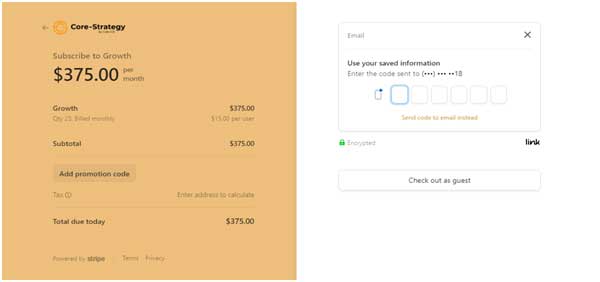
Two-Step Authentication
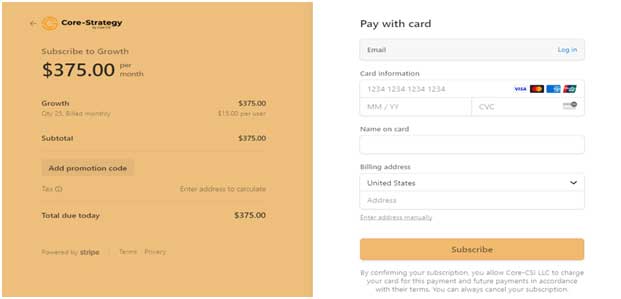
Check-Out
Navigation #
The following table provides an overview of the side navigation pane components.
| Component Name | Description |
|---|---|
| Dashboard | Single page view of individual’s assigned goals, objectives, strategic initiatives, KPIs, organization roadmap relationship with goals, objectives, strategic initiatives. |
| Calendar | This calendar informs the user of all the upcoming events (OKR, SI, Milestones, KPI, Key Results for which data needs to be updated. |
| Help | The user guide is displayed under this menu section. |
| FAQ | Frequently asked questions are displayed under this section. |
| Notifications | View all alerts and new notifications |
| Username | Displays the current user of the Core-Strategy tool |
| User Profile | Users can update their profile, change their password and see their respective teams. Additionally, the user can view/manage subscription levels, or sign out of the active session |
| Sign-out | Logout of the application using the sign-out option. |
| Language | Change the language of display in the application to any of the options available. |
Table 1 Top Navigation Pane Components
Side Navigation Bar #
From the side navigation bar, the user can launch various analytical models. Core Strategy incorporates four models to include: Balanced Scorecard, Strategy Roadmap, PESTLE Analysis and Strategy Tree. To navigate to the desired model, expand the vertical ribbon bar on the left and select the desired model.
| Sidebar | Component Name | Component Description |
|---|---|---|
| Environment Scanning | Drivers | Drivers represent external or internal conditions that motivate an organization to define its goals and implement the changes necessary to achieve them. |
| Capabilities | ||
| SWOT Analysis | ||
| Strategy Formulation | Strategy Plan | |
| Goals | Goals are an observable and measurable result having one or more objectives to be achieved. Goals are typically broad in scope. | |
| Strategy Execution | Objective & Key Results | Objective and Key Results (OKR)–a goal-setting framework that helps organizations objectives and track Key results. |
| Projects | Projects (IT or not-IT Projects) within an organization with specific tasks, milestones and added KPIs. | |
| Models | Balanced Scorecard | A mind map is a hierarchical diagram that shows the complete strategic management relationship from the Organization’s vision to all the objectives and programs in a single diagram. |
| Strategy Roadmap | Detailed view of Organization’s Roadmap with the hierarchical relationship of drivers, goals, objectives/strategic initiatives, and milestones. | |
| PESTLE Analysis | PEST Analysis is a simple and widely used tool that helps you analyse the Political, Economic, Socio-Cultural, and Technological changes in your business environment. | |
| Strategy Tree | A strategy tree is a hierarchical diagram that shows the complete strategic management relationship from the Organization’s vision to all the objectives and programs in a single diagram. | |
| Administration | API key | The API Key is used for initial authentication purposes. |
| Integrations | This is a page integrated with Zapier to help users integrate core-strategy features with more than 500+ applications. | |
| Users | Manage users, their roles as well as their reporting structure within the Organization. | |
| Organization | Manage organization overview, mission and vision | |
| Organization Structure | Graphical representation of the Organization’s structure. | |
| Roles | Manage user roles and their access privileges to any screen or functionality within an application. | |
| Teams | Group of users assigned to track collective tasks instead of a single user. | |
| Set-up | Perspectives | Perspective refers to a category of performance objectives or measures. |
| Performance Criteria | Performance criteria express what is to be measured and why (i.e., how success is defined). | |
| Strategic Themes | Strategic themes are the primary, high-level business strategies that form the basis for the Organization’s business model. | |
| Key Performance Indicators | KPI provides specific measure on various key parameters which need to be measured for the success of that project | |
| Subscription | Manage Subscription |


Leave a Reply