
SWOT (strengths, weaknesses, opportunities, and threats) analysis is a method for identifying and analyzing internal strengths and weaknesses and external opportunities and threats that shape current and future operations and help develop strategic goals.
A SWOT analysis is a great way to guide business-strategy meetings. It’s powerful to have everyone in the room discuss the company’s core strengths and weaknesses, define the opportunities and threats, and brainstorm ideas.
A company can use a SWOT for overall business strategy sessions or for a specific segment such as marketing, production, or sales.
Based on information from drivers and organization capabilities, we should be able to generate the SWOT analysis for the application.
We need to see, if we can generate drivers, capabilities directly from the SWOT screen as well.
- Strengths/ Weakness are internal drivers
- Opportunities/ Threats are external drivers.
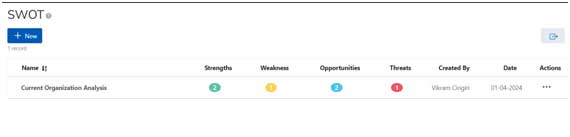
SWOT provides an opportunity for users to create and view multiple SWOT Analysis for various purposes. All SWOT analysis are specific to user, but a user also has an ability to share it with other users as well.
Common Components:
 This button allows user to create a new capability.
 User has an ability to export results in XLSX, CSV, PDF formats
Table Column
- Name: The name of the SWOT Analysis provided by the user.
- Strengths: The number of strengths identified by the user.
- Weakness: The number of weaknesses identified by the user.
- Opportunities: The number of opportunities identified by the user.
- Threats: The number of threats identified by the user.
- Created By: Provides the name of the user who has done the analysis.
- Date: Provides the date of the analysis
- Actions: We have following action menu items:
- View: View the details of the SWOT analysis
- Share: Share the SWOT analysis to other users
- Delete: Delete the SWOT analysis permanently.
Share SWOT
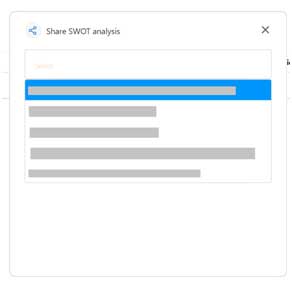
From the actions menu, we have an opportunity to share the SWOT analysis to any other user within the organization. The modal window displays all the users to be selected so the SWOT analysis can be shared within the organization.
Delete SWOT
The system allows a SWOT analysis to be deleted by the user. User can select the delete option from the Action Menu to permanently delete the SWOT Analysis.
Add/ View SWOT #

- Click on the “New” button to add a new SWOT Analysis record.
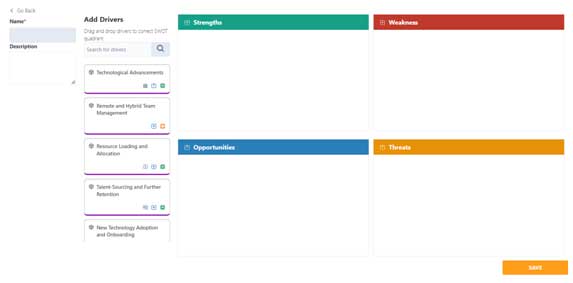
- Name: Provide a Name to the SWOT analysis being performed.
- Description: A description of the SWOT analysis
- Add Drivers: Select the drivers and move then into the SWOT quadrants.
- Save: Creates a new SWOT Analysis


Leave a Reply