
A strategy plan is a tool to define your organization’s goals and what actions you will take to achieve them. Typically, a strategic plan will include your company’s influencing factors like drivers, business capabilities, your long-term goals and its associated objectives (like OKR or Projects) and an action plan of the steps you’re going to take to move in the right direction.
Strategy Plan List #
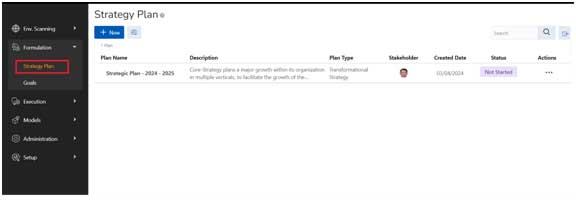
The strategy plan can be accessed from the menu: Formulation à Strategy Plan
Common Components:
 : This button allows user to create a new strategy plan.
 : Open Filter section for advanced filter strategy plan
 : User has an ability to export results in XLSX, CSV, PDF formats
 : Search strategy plan
Table Column
- Plan Name: The name of the strategy plan
- Description: A detailed description of the strategy plan
- Plan Type:The type of strategic plan formulated by the user. <The definition for “Type of Strategy” is mentioned in the terminology section>
- Stakeholder:The main stakeholder of the Strategy Plan
- Created Date:The date of creation of the strategy plan
- Status:The current status of the Strategy Plan.
- Actions:Following action items are available:
- View: View the Detail Page of the Strategy Plan
- CreatePlan: Create a Child Plan to the current/ selected strategy plan.
- Approve: When the status of the Plan is in Draft Status, an owner of the Strategy plan can approve the Plan to move to an Active State.
- Change Status: The Change Status option Is visible only after the Draft Plan is Approved.
- On Hold: A Strategy plan in Active state can be moved to On Hold which is like a temporary hold on the Strategy Implementation.
- Cancelled: A Strategy plan can be permanently cancelled by the Owner. Cancel status is an End-of-life cycle, so there is no return back once cancelled.
- Delete: This deletes all the contents of the Strategy Plan and its references. Delete option is only possible when the Strategy plan is in Draft Status. Once a plan is moved to Active, then a plan cannot be Deleted by any user.
Add Strategy Plan #

- Click on the “New” button on the top left to create a new Strategy Plan.
- A child Strategy Plan can also be created by clicking on Action Menu à “Create Plan” under any Strategy Plan record.
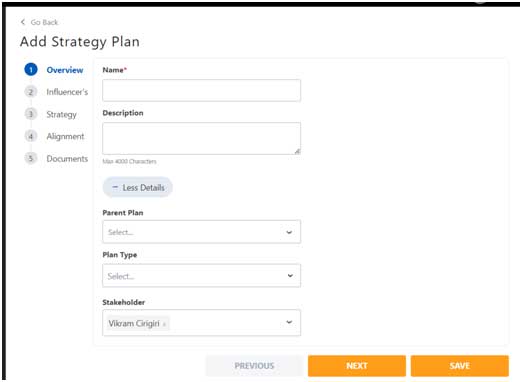
As part of creating a strategy plan, following areas/sections are added/created to a Strategy Plan:
- Overview: Here basic information about the strategy and its details are provided.
- Influencers: All influencing factors which have been the reason to build the strategy like current drivers & organization capabilities are added as part of Capabilities.
- Strategy: During the Strategy building Process, organizational Goals and its associated OKRs or Projects are added/ mapped to the Strategy.
- Alignment: Strategy Plan is then aligned to various teams/ organizations so that they are all mapped to the current strategy plan.
- Documents: Any documents which will be used for reference purposes can be uploaded in the documents section.
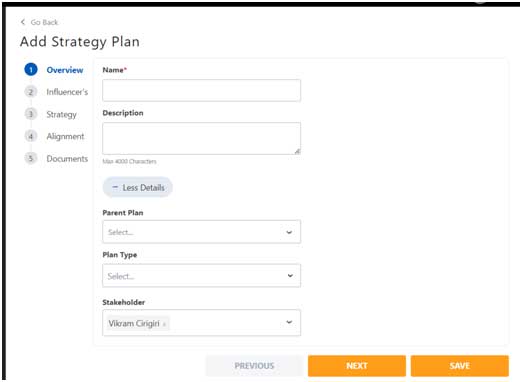
Overview
- Name: The name of the strategy plan
- Description: A detailed description of the strategy plan
- Parent Plan: We have an opportunity to build an hierarchical view of Strategy Plan by selecting a Parent Plan. This will help us build a Strategy Tree within an organization.
- Plan Type:The type of strategic plan formulated by the user. <The definition for “Type of Strategy” is mentioned in the terminology section>
- Stakeholder: The main stakeholder of the Strategy Plan
Influencers
The influencers section consists of all the active Drivers (Influencing factors) and Organization Capabilities which have influenced the need for a new long-term strategy for the organization.
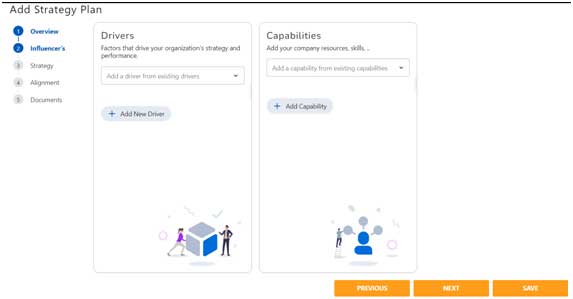
- Drivers: Here you can select any of the existing drivers from the dropdown or create a new Driver and add them as a strategy plan influencer
- Capabilities: Here you can select any of the existing capability from the dropdown or create a new capability and add them as a strategy plan influencer
Strategy
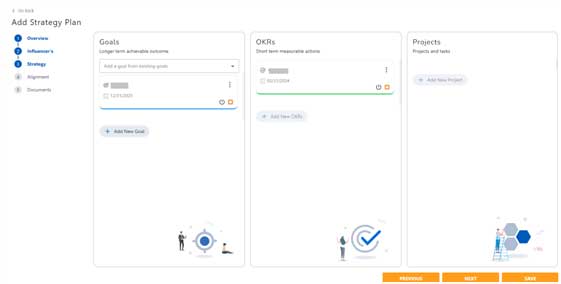
- Goals: Here you can select any of the goals which are not mapped to any Strategy Plan from the dropdown. This way a goal will get mapped to a Strategy Plan or create a new Goal which will by default be mapped to the current strategy plan.
- OKRs: Once a goal is mapped to the Strategy Plan, all OKRs associated with the current goal will automatically be part of the Strategy Plan. User cannot remove/ un-select the OKR from the plan. User also has an opportunity to create a new OKR from the current screen as well.
- Projects: Once a goal is mapped to the Strategy Plan, all projects associated with the current goal will automatically be part of the Strategy Plan. User cannot remove/ un-select the project from the plan. User also has an opportunity to create a new Project from the current screen as well.
In this screen, the user is setting the complete Strategy with its Goals and objectives. User will now have an opportunity to review, schedule as well as assign resources for the Strategy here in the Strategy Formulation section.
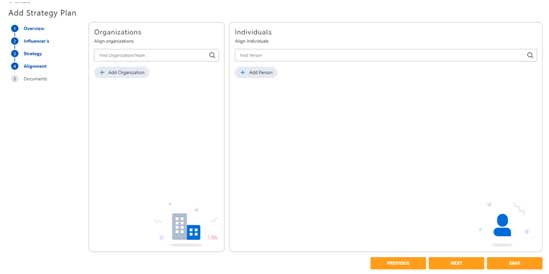
Alignment
- Organizations: Select all the organizations which are required to be part of this Strategy. Selecting an organization will by default select all the users within that organization.
- Individuals: We also have an ability to select individuals independently or view all individuals who are part of the selected organization.
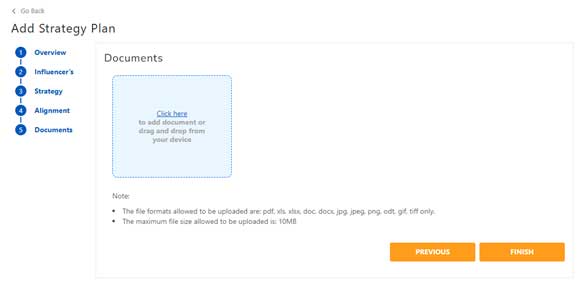
Documents
- For any strategy plan, system provides an ability to upload multiple documents.
- The file formats allowed to be uploaded are: pdf, xls, xlsx, doc, docx, jpg, jpeg, png, odt, gif, tiff only.
- The maximum file size allowed to be uploaded is: 10MB
View Strategy Plan Detail #
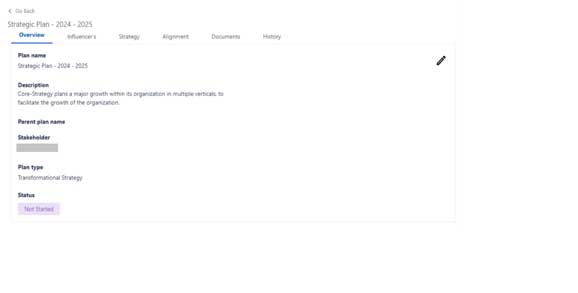
Overview
- Name: The name of the strategy plan
- Description: A detailed description of the strategy plan
- Parent Plan: We have an opportunity to build an hierarchical view of Strategy Plan by selecting a Parent Plan. This will help us build a Strategy Tree within an organization.
- Plan Type:The type of strategic plan formulated by the user. <The definition for “Type of Strategy” is mentioned in the terminology section>
- Stakeholder: The main stakeholder of the Strategy Plan
- Status: The current status of the Strategy Plan
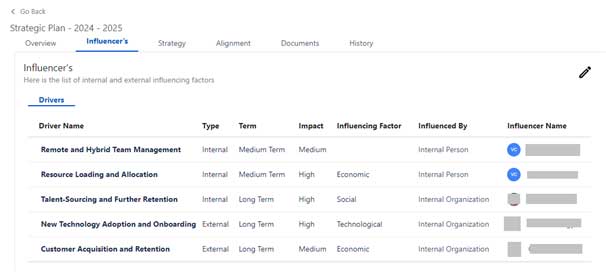
- Drivers: Here you can view all the drivers mapped with the strategy plan.
Strategy
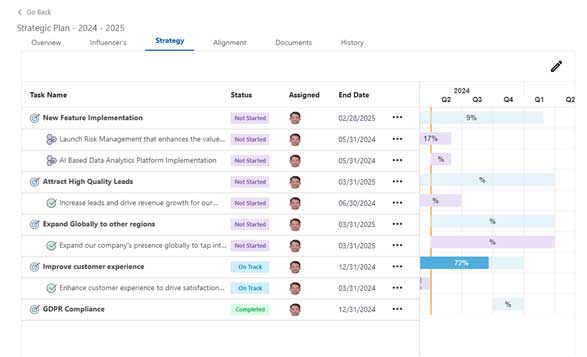
- The user is able to view the complete Strategy hierarchy, which means the Goals and the OKRs or Projects which are mapped to the Goals.
- The user can view the Status, Assignment and End Dates
- A Gantt Chart is also provided to along with the complete Strategy.
Alignment
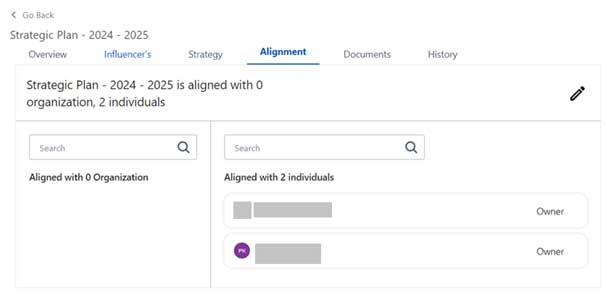
- Organizations: View all the organizations which are part of this Strategy. Selecting an organization will by default select all the users within that organization.
- Individuals: Ability to view individuals along with their privileges in the current strategy.
Documents
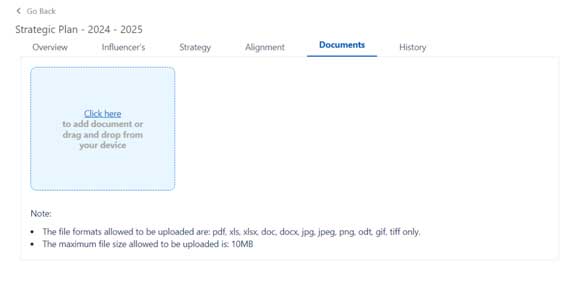
- For any strategy plan, system provides an ability to upload multiple documents.
- The file formats allowed to be uploaded are: pdf, xls, xlsx, doc, docx, jpg, jpeg, png, odt, gif, tiff only.
- The maximum file size allowed to be uploaded is: 10MB
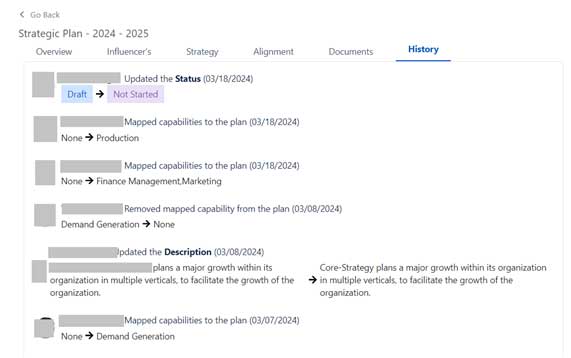
History
- The history tab provides an audit history of all the actions performed on the current Strategy plan along with the details of the user who has changed it and Date of change.
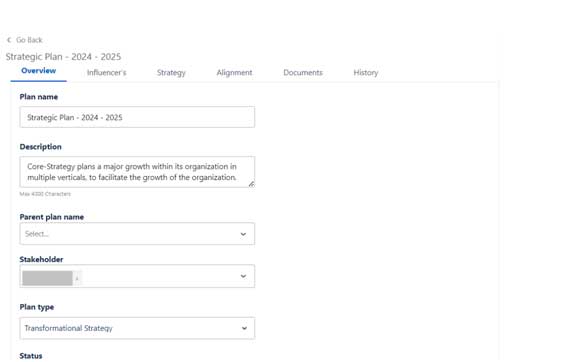
Overview
- Name: The name of the strategy plan
- Description: A detailed description of the strategy plan
- Parent Plan: We have an opportunity to build an hierarchical view of Strategy Plan by selecting a Parent Plan. This will help us build a Strategy Tree within an organization.
- Plan Type:The type of strategic plan formulated by the user. <The definition for “Type of Strategy” is mentioned in the terminology section>
- Stakeholder: The main stakeholder of the Strategy Plan
- Status: The current status of the Strategy Plan
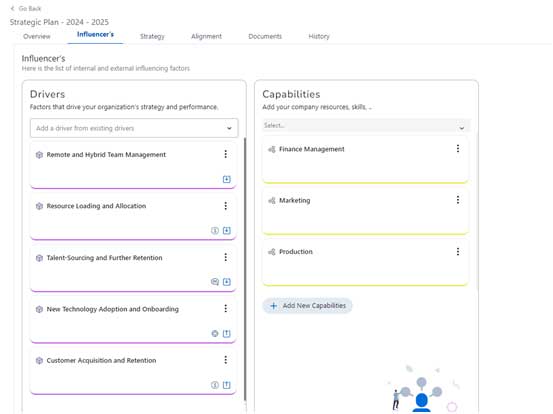
- Drivers: Here you can view all the drivers mapped with the strategy plan.
- Capabilities: Here you can select any of the existing capability from the dropdown or create a new capability and add them as a strategy plan influencer
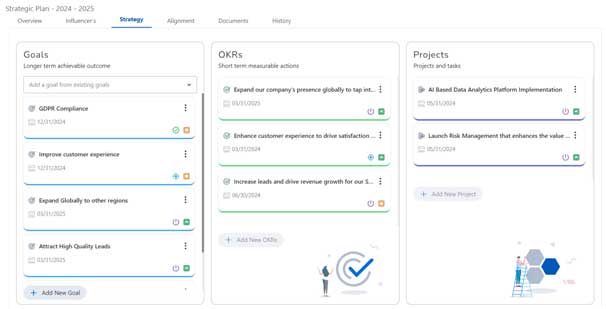
Strategy
- The user is able to edit the complete Strategy hierarchy, which means the Goals and the OKRs or Projects which are mapped to the Goals.
- The user can view the Status, Assignment and End Dates
- User also will have an ability to add more Goals, OKR, Project to the current Strategy Plan.
Alignment
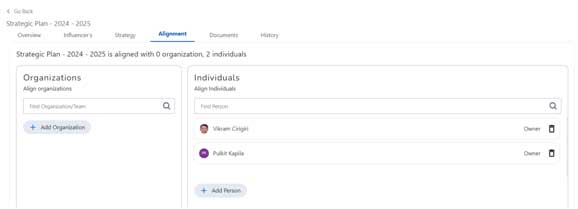
- Organizations: Add/ edit/ delete all the organizations which are part of this Strategy. Selecting an organization will by default select all the users within that organization.
- Individuals: Ability to add/ edit/ delete individuals along with their privileges in the current strategy.
Documents
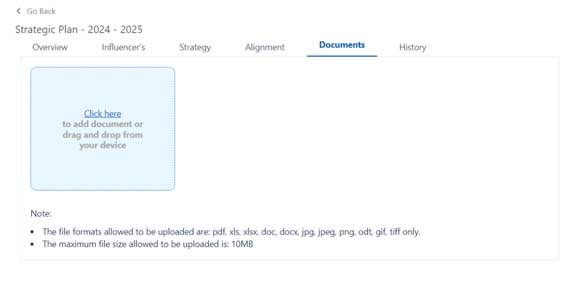
- For any strategy plan, system provides an ability to upload multiple documents.
- The file formats allowed to be uploaded are: pdf, xls, xlsx, doc, docx, jpg, jpeg, png, odt, gif, tiff only.
- The maximum file size allowed to be uploaded is: 10MB
History
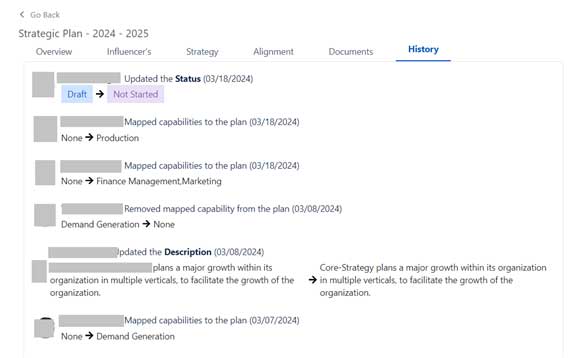
- The history tab provides an audit history of all the actions performed on the current Strategy plan along with the details of the user who has changed it and Date of change.


Leave a Reply