
Objectives and Key Results (OKR) is a goal-setting framework that helps organizations define objectives and track key results. At the time of implementation, Key results to be achieved at specified periods are properly defined, so that at defined intervals, Key results are measured against an objective, which in-turn provides us the progress we are making on a specific objective, and towards accomplishment of a goal within the organization.
OKR List #
Objective & Key Results (OKR)
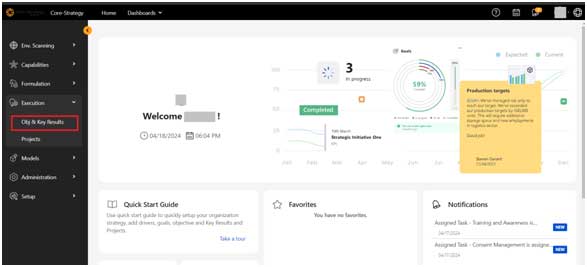
- The objective and key results page can be accessed from the menu: ExecutionàOKR
- The OKRs visible to a user shall be the ones which the logged in user has either created or the OKR is promoted to him or his organization.
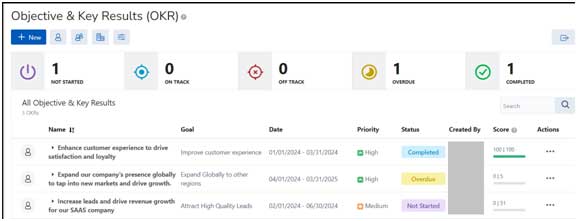
Common Components:
 : This button allows the user to create a new OKR.
 : Filter to show only individual OKR to user.
 : Filter to show only team OKRto user.
 : Filter to show only organization OKRto user.
 : Open Filter section for advanced filter OKR
 : User has an ability to export results in XLSX, CSV, PDF formats.
 : Search OKRs
 : A count of all the OKRswhich are having “Not Started” status.
 : A count of all the OKRs which are having “On Track” status.
 : A count of all the OKRs which are having “Off Track” status.
 : A count of all the OKRs which are having “Overdue” status.
 : A count of all the OKRswhich are having “Completed” status.
Table Columns
- Column 1: Shows all icons to identify a goal, e.g.: Promoted icon, individual icon.
- Name: Name of the OKRalong with a brief description of the OKR.
- Goal: Name of the Goal to which the OKR is mapped to.
- Date: Displays the Start & End date of a OKR.
- Priority: Displays the priority of the OKR.
- Status: Current Status of the OKR.
- Created By: The stakeholder/ creator of the OKR.
- Score: The score shows both “Actual| Target” score of the OKR.
- Actions: Actions available on OKRpage are:
- View
- View Goal
- View OKR
- Promote: The user with Owner Privilege has the capability to promote anOKR to different individuals/ teams/ organizations.
- Archive: An active OKR can be moved to Archive status, which is an end-of-life cycle event.
- View
Delete: An OKR can be deleted by the owner of the OKR.
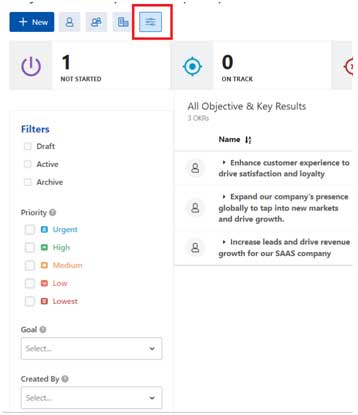
Filter
Users can filter data based on the criteria below.
- States
- Draft: Show OKRsin Draft State
- Active: Show OKRswhich are in Active State. Active State includes (Not Started, On Track, Off Track, Overdue, Completed status).
- Archive: Show OKRswhich have been Archived.
- Priority: Filter OKRsbased on Priority of project.
- Goal: Filter OKRsbased on the selected Goal.
- Created By: Show OKRsbased on the Stakeholder of the OKR.
- Dates: Show OKRswhich are between the selected dates.
- Reset Filter: Clear filter criteria to default state.
View OKR Detail #
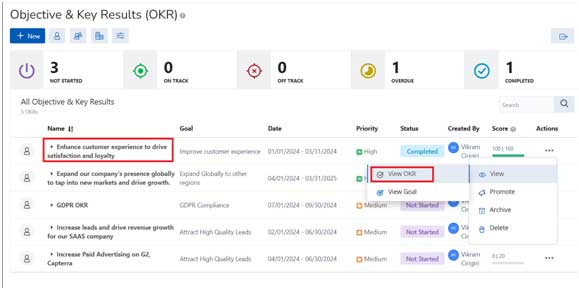
To View OKR detail, user can click either on the OKR name or select the “View OKR” option on the Action Menu as marked.
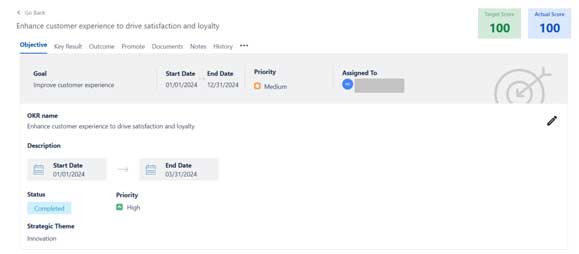
Objective Overview
The heading of the Objective Tab shows information of Goal:
- Goal: Name of the goal, the current project is mapped to.
- Status: Status of the Goal.
- Start Date: The start date of the goal.
- End Date: The end date of the goal.
- Priority: The priority of the goal.
- Created By: The stakeholder of the goal.
- Target Score: The calculated target score to be achieved by the OKR.
- Actual Score: the actual goal score achieved by the objectives of the OKR.
Other information related to the project are:
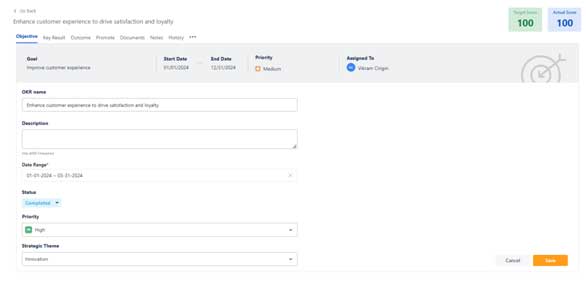
- OKRName: The name of the OKR
- Description: the description provided of the OKR.
- Start Date: Start Date of the OKR
- End Date: End Date of the OKR
- Status: Realtime Status of the OKR
- Priority: Priority assigned to the OKR
- Strategic Theme: Select the strategic theme relevant to the current OKR.
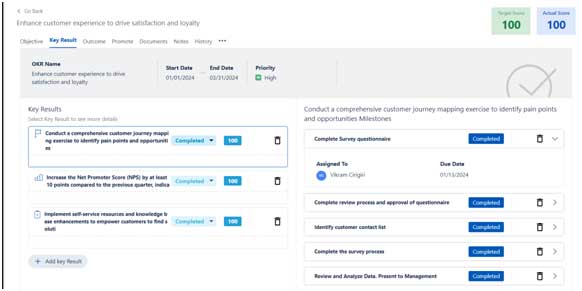
For each Objective, multiple Key Results can be added. Typically, there are between three to five key results for each objective.
OKR framework provides three options to add Key Results.
- Task: A type task means, all tasks have Start & End dates along with measure period and a measure to calculate progress of a task.
- Milestone: A type milestone has a set of milestones with Due Dates by when a milestone will need to be completed.
- KPI: A key result can also be measured by KPIs. User will need to select a KPI against which a key result progress can be measured.
On the right panel of the Key Result, user will see the Tasks/ Milestone/ KPIs and their status. Users will be able to update the Actual Values as well as the Status and mark each of the tasks as complete.
Outcome
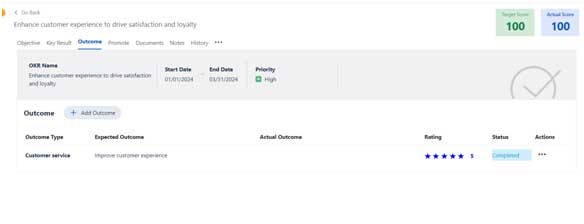
Outcome
- Users can view the list of expected outcomes for the OKR.
- After the OKR is complete, as part of evaluation process of the project, each of the outcomes is updated with actual outcome and rate the success of the outcome.
Promote
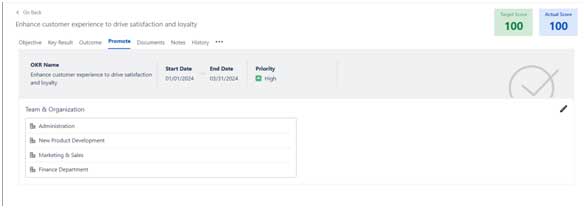
Promote
The promote tab shows all the teams and organizations to which the project is currently mapped.
Documents
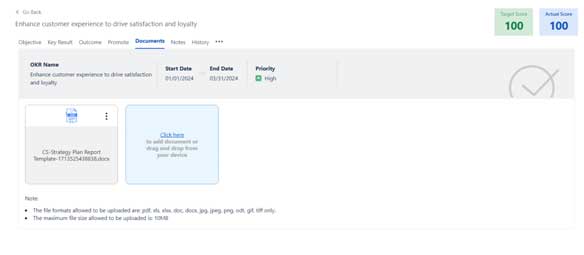
Documents
- For any OKR, the system provides the ability to upload multiple documents.
- The file formats allowed to be uploaded are PDF, XLS, XLSX, DOC, DOCX, JPG, JPEG, PNG, ODT, GIF, TIFF
- The maximum file size allowed to be uploaded is: 10MB.
Notes
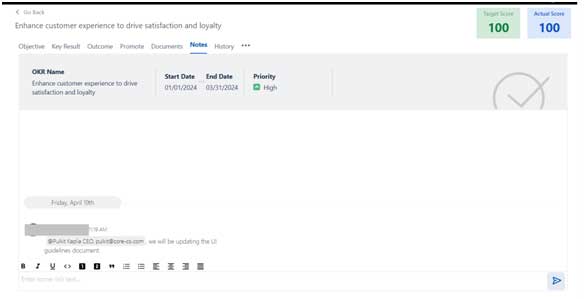
Notes
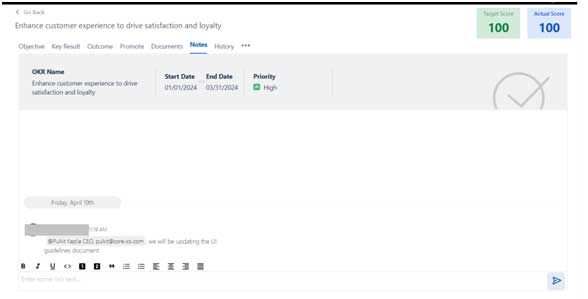
- For each OKR, the system provides an ability to add rich text as notes, which can be used for reference purposes.
- The notes component can add user annotations using @ symbol. Once a note is added with a username, an email is also generated as well as an In-App notification is generated for the mentioned user.
- Only The owner of the notes has permission to Edit/ Delete a Note. Other users will not be able to edit/ delete the notes of other users.
History
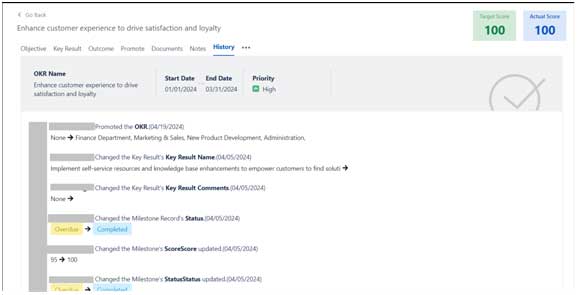
History
- The history tab provides an audit history of all the actions performed on the current OKR along with the details of the user who has changed it and date of change.
Edit OKR #
Key Results
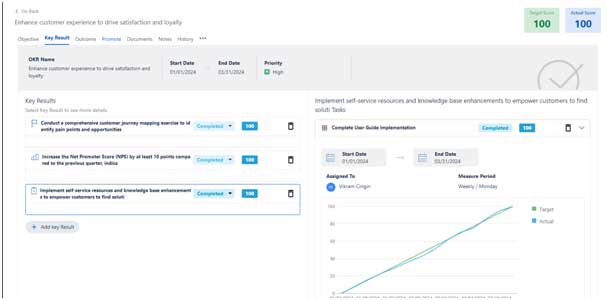
For each Objective, multiple Key Results can be added. Typically, there are between three to five key results for each objective.
OKR framework provides three options to add Key Results.
- Task: A type task means, all tasks have Start & End dates along with measure period and a measure to calculate progress of a task.
- Milestone: A type milestone has a set of milestones with Due Dates by when a milestone will need to be completed.
- KPI: A key result can also be measured by KPIs. User will need to select a KPI against which a key result progress can be measured.
On the right panel of the Key Result, user will see the Tasks/ Milestone/ KPIs and their status. Users will be able to update the Actual Values as well as the Status and mark each of the tasks as complete.
Outcome
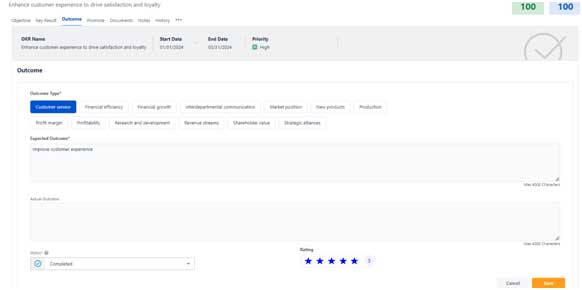
Outcome
- Users can view the list of expected outcomes for the OKR.
- After the OKR is complete, as part of evaluation process of the project, each of the outcomes is updated with actual outcome and rate the success of the outcome.
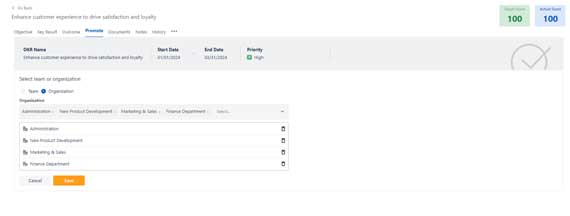
Promote
Documents
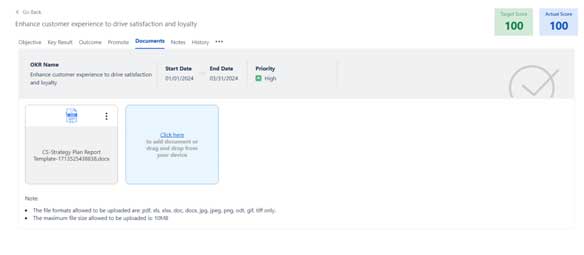
- For any OKR, the system provides the ability to upload multiple documents.
- The file formats allowed to be uploaded are PDF, XLS, XLSX, DOC, DOCX, JPG, JPEG, PNG, ODT, GIF, TIFF
- The maximum file size allowed to be uploaded is: 10MB.
Notes
- For each OKR, the system provides an ability to add rich text as notes, which can be used for reference purposes.
- The notes component can add user annotations using @ symbol. Once a note is added with a username, an email is also generated as well as an In-App notification is generated for the mentioned user.
- Only The owner of the notes has permission to Edit/ Delete a Note. Other users will not be able to edit/ delete the notes of other users.
History
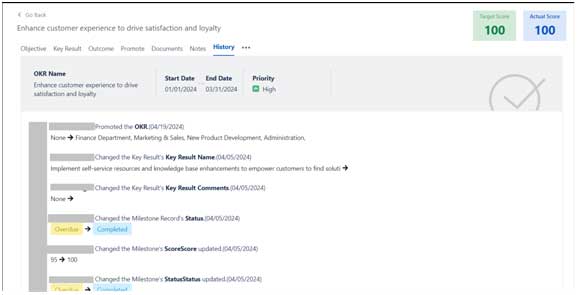
- The history tab provides an audit history of all the actions performed on the current OKR along with the details of the user who has changed it and date of change.


Leave a Reply